 Eng
Eng  Rus
Rus  Deu
Deu  Ital
Ital  Esp
Esp  Port
Port  Jap
Jap  Chin
Chin How to save audio track from movie or clip

By Olga Krovyakova - April, 3 2019
You liked the audio track from the movie or clip, and you would like to keep it separately. Our SolveigMM WMP Trimmer Plugin can help you with this.
Just follow this short guide:
1. Download and install SolveigMM WMP Trimmer Plugin.
2. Launch Windows Media Player.
3. To open source file with needed audio track click main menu item «File -> Open» (Figure 1).
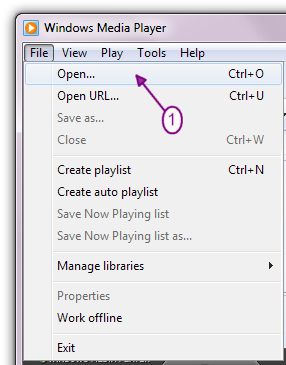
Figure 1
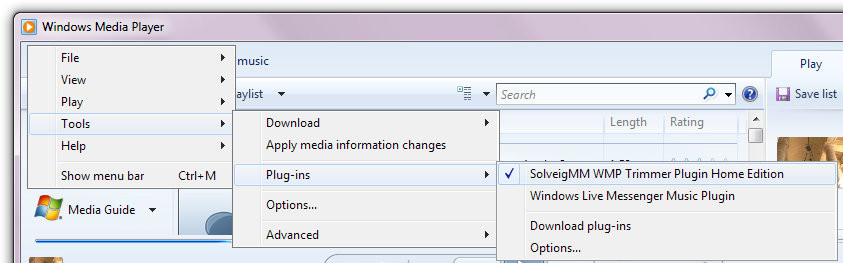
Figure 2
SolveigMM WMP Trimmer Plugin will appear in the Windows Media Player window (Figure 3).
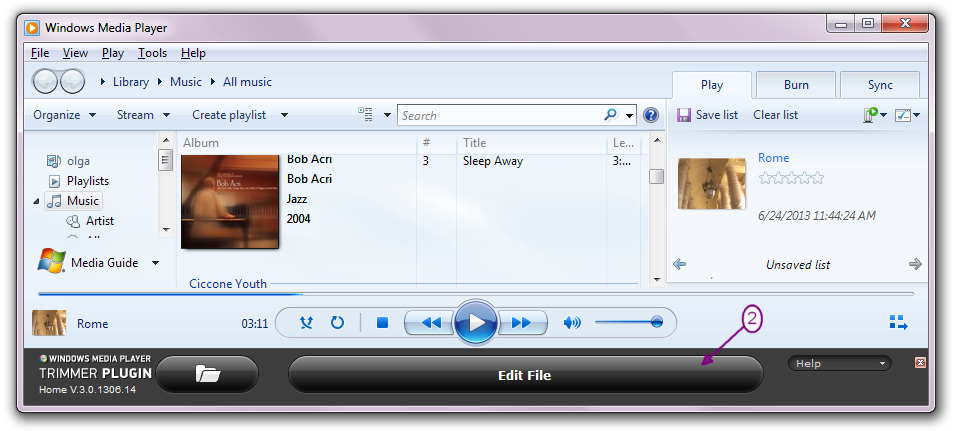
Figure 3
Click the "Edit File" button to change WMP Trimmer Plugin's view to extended (Figure 4).
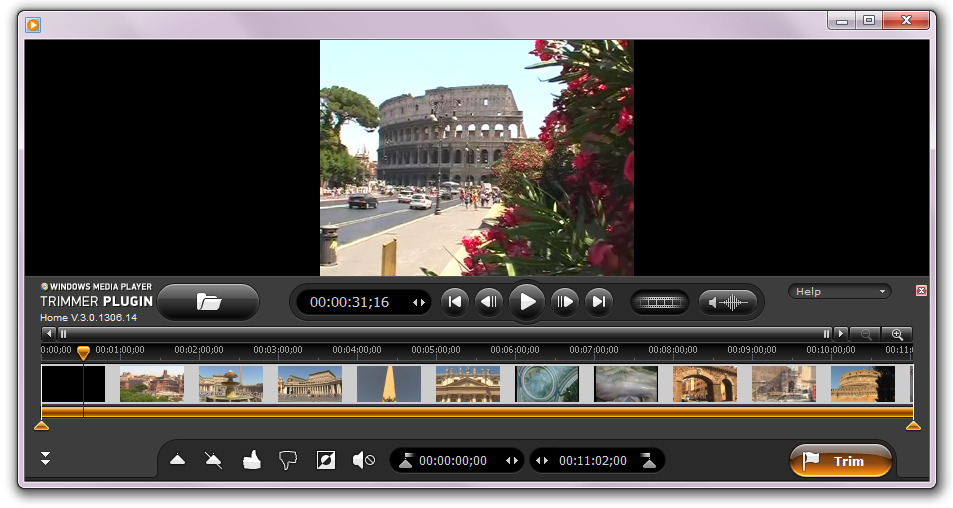
Figure 4
A)If you want to save all audio content of movie or clip:
Сlick «Trim» button (Figure 5).
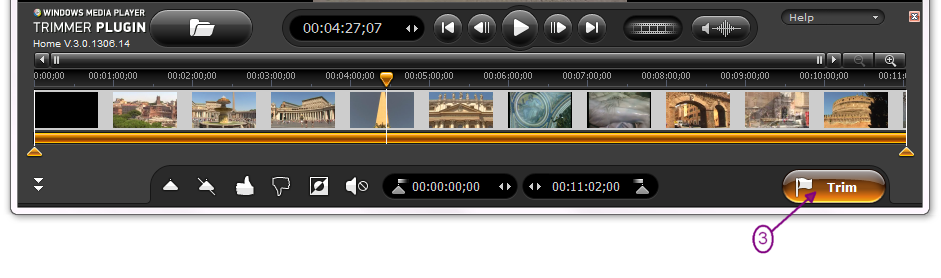
Figure 5
Choose the following in the newly opened window (Figure 6a, Figure 6b):
- directory for saving;
- «Audio Only» (Figure 6a) or check «Save audio track only» checkbox (Figure 6b) in «Save as type» field;
- name for your audio file in «File name» field.
Press «Save » button to save your audio track.
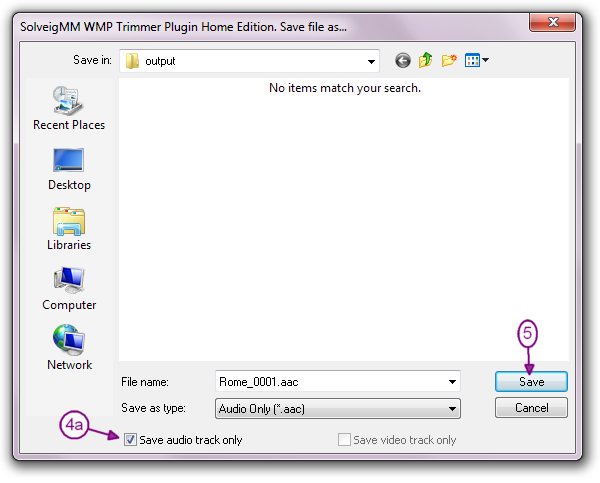
Figure 6a
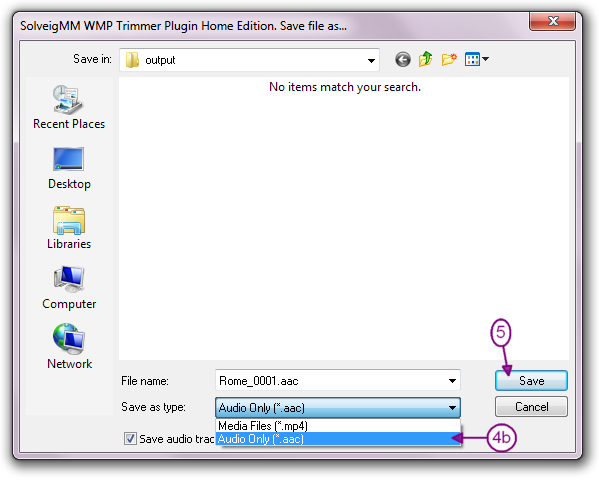
Figure 6b
B) If you want to save the defined audio track from movie or clip:
Move the left marker to define start position and left marker to define end position of the audio clip you’d like to have.
Press «Trim» button to trim audio from selected interva (Figure 7).
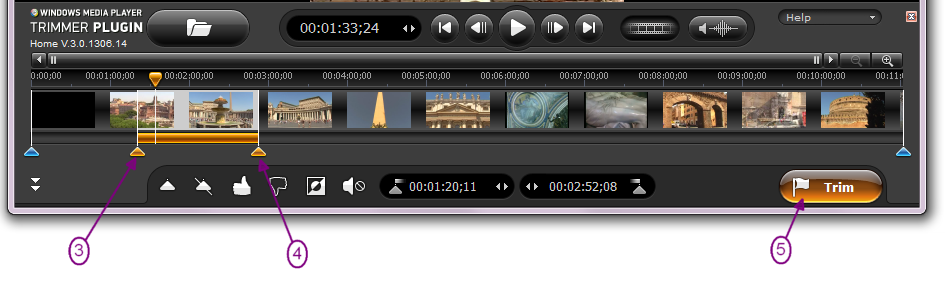
Figure 7
Choose the following in opened window (Figure 6a, Figure 6b):
- directory for saving;
- «Audio Only» (Figure 6a) or check «Save audio track only» checkbox (Figure 6b) in «Save as type» field;
- name for your audio file in «File name» field.
Press «Save» button to save your audio track.
The trimming process will be displayed in a progress bar (Figure 9) and can be canceled anytime.

Figure 9
When the trimming process is done, you will be informed with the corresponding message (Figure 10).
Click Yes button in the message dialog if you want to open folder with output media file. Click No button otherwise.
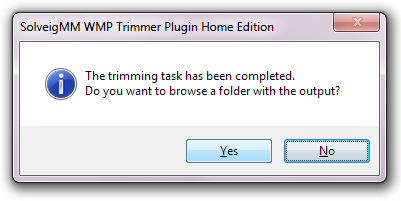
Figure 10
- https://www.solveigmm.com/en/support/howto/how-to-register-solveigmm-wmp-trimmer-plugin/
- https://www.solveigmm.com/en/support/howto/how-to-make-ringtone-for-cellphone-with-wmp-trimmer-plugin/
- https://www.solveigmm.com/en/support/howto/how-to-edit-your-video-and-audio-within-windows-media-player/
 Olga Krovyakova is the Technical Support Manager in Solveig Multimedia since 2010.
She is the author of many text and video guidelines of company's products: Video Splitter, HyperCam, WMP Trimmer Plugin, AVI Trimmer+ and TriMP4.
She works with programs every day and therefore knows very well how they work. Сontact Olga via support@solveigmm.com if you have any questions. She will gladly assist you!