 Ital
Ital  Eng
Eng  Rus
Rus  Deu
Deu  Esp
Esp  Port
Port  Jap
Jap  Chin
Chin Come modificare il tuo film per metterlo su YouTube

By Olga Krovyakova - March, 21 2019
Questa guida considera lo scenario semplice:
Vuoi creare il clip filmato eliminando le parti non necessarie dal file AVI. Sicuramente puoi farlo tramite molti strumenti video gratuiti/shareware. Questa guida spiega come farlo con il nostro editor video gratuito - SolveigMM AVI Trimmer + MKV in pochi semplici passaggi senza degrado della qualità video/audio e in un paio di minuti.

Qui ad esempio vogliamo produrre la clip che contenga due scene divertenti dal film amatoriale AVI iniziale.
Nota: AVI Trimmer + MKV ti consente di conservare/tagliare un numero qualsiasi di frammenti.
1. Scarica e installa questo strumento.
2. Avvia SolveigMM AVI Trimmer + MKV
3. Apri un file AVI o MKV sorgente per avere le scene che ti piacciono (immagine 1).
Oppure premi il pulsante Cartella se apri il file dalla finestra principale di AVI Trimmer + MKV.
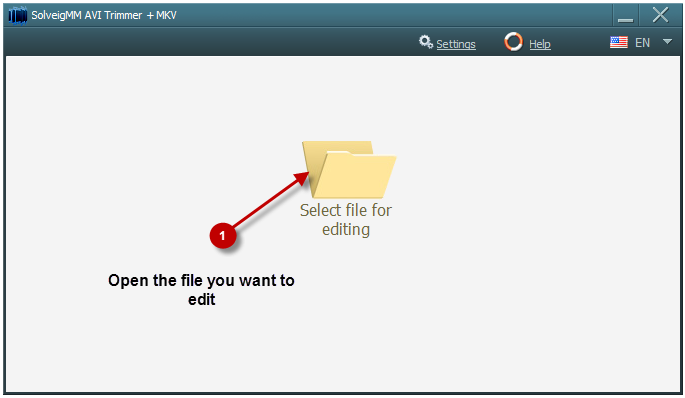
Immagine 1 – Passaggio 1
4. Trova l'inizio della prima scena che desideri conservare (immagine 2). Puoi farlo utilizzando la barra di scorrimento video , i pulsanti di riproduzione e di pausa .
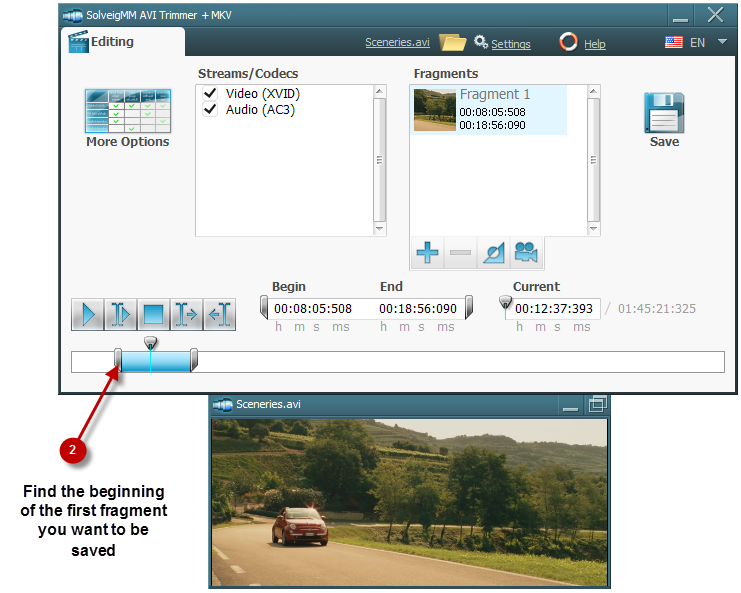
Immagine 2 – Passaggio 2
Oppure sposta il cursore fino alla posizione iniziale e premi il pulsante "Left Trim Mark" come inizio di un pezzo che desideri salvare (immagine 3)
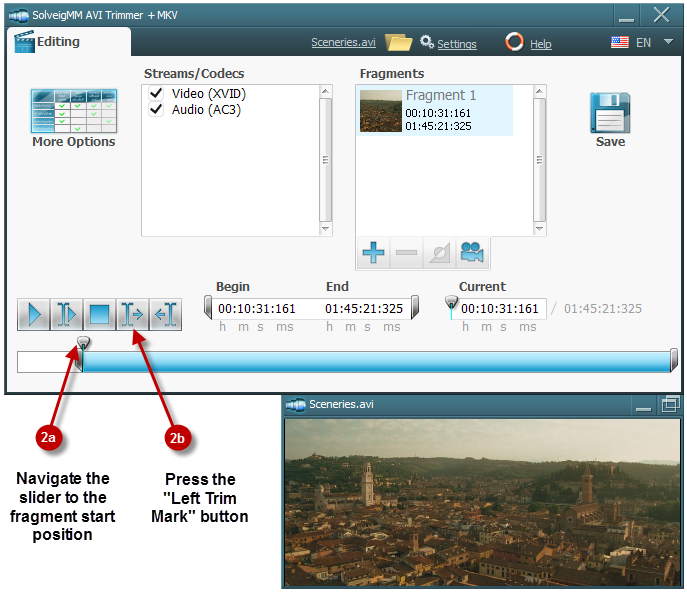
Immagine 3 – Passaggio 2
5. Trova l'estremità del frammento (immagine 4). È possibile eseguire la ricerca della posizione finale utilizzando la barra di scorrimento video , i pulsanti di riproduzione e di pausa .
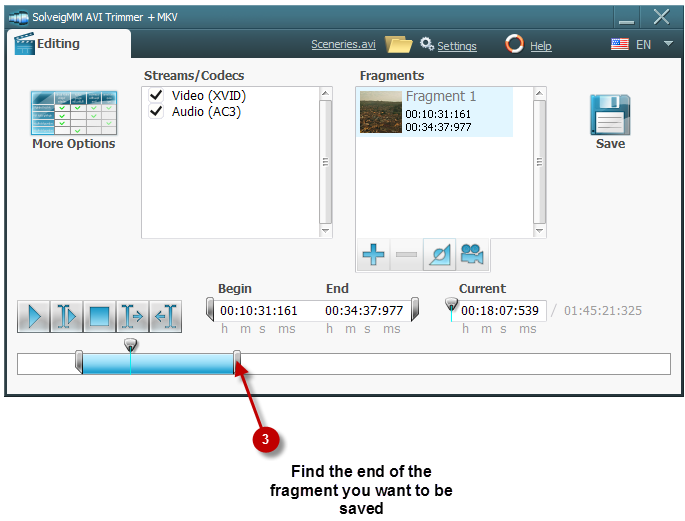
Immagine 4 – Passaggio 3
Oppure sposta il cursore fino alla posizione finale e premi il pulsante "Segno di ritaglio destro.
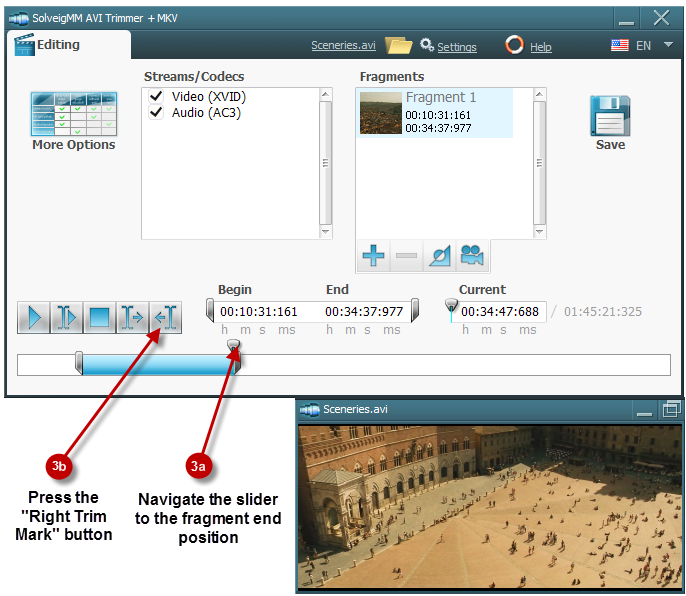
Immagine 5 – Passaggio 3
6. Per trovare e contrassegnare i frammenti successivi che si desidera presentare in una clip di output, seguire le stesse istruzioni descritte ai punti 4, 5. Le immagini 6, 7, 8, 9 raffigurano queste azioni.
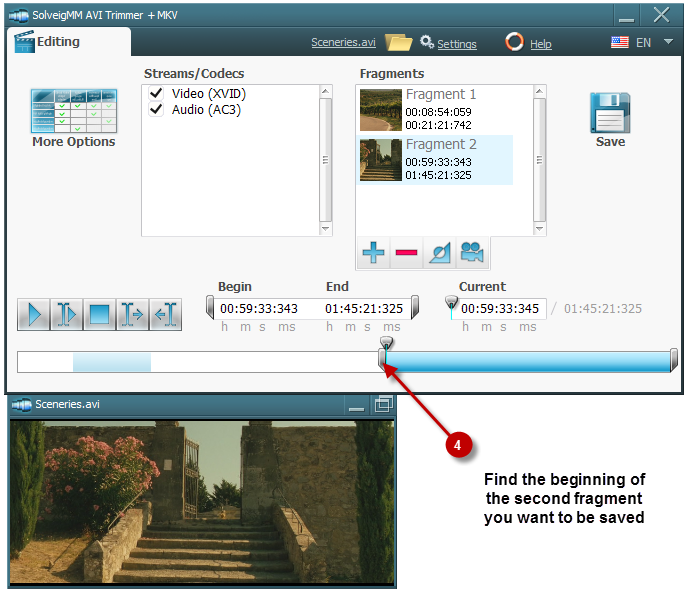
Immagine 6 – Passaggio 4
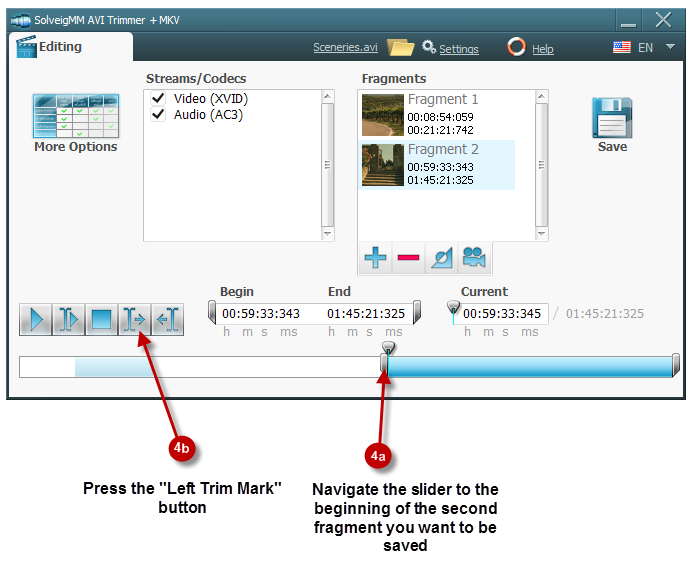
Immagine 7 – Passaggio 4
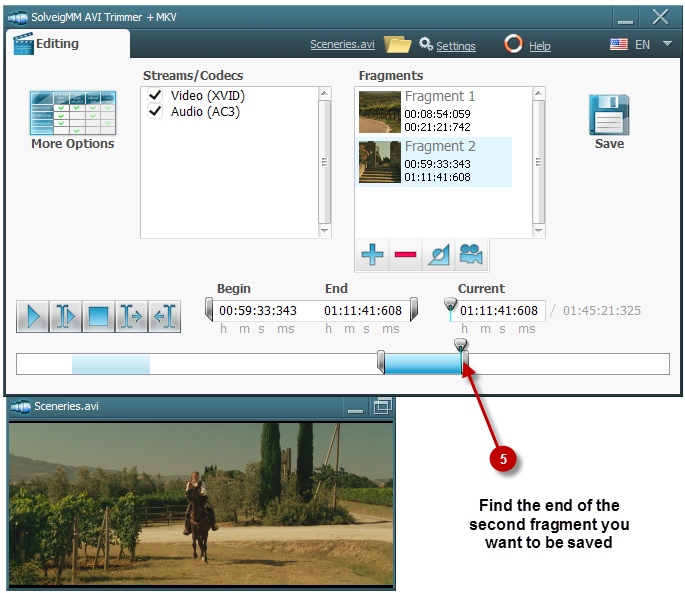
Immagine 8 – Passaggio 5
Oppure sposta il cursore fino alla fine del secondo frammento e premi il pulsante "Ritaglia destra Segna.
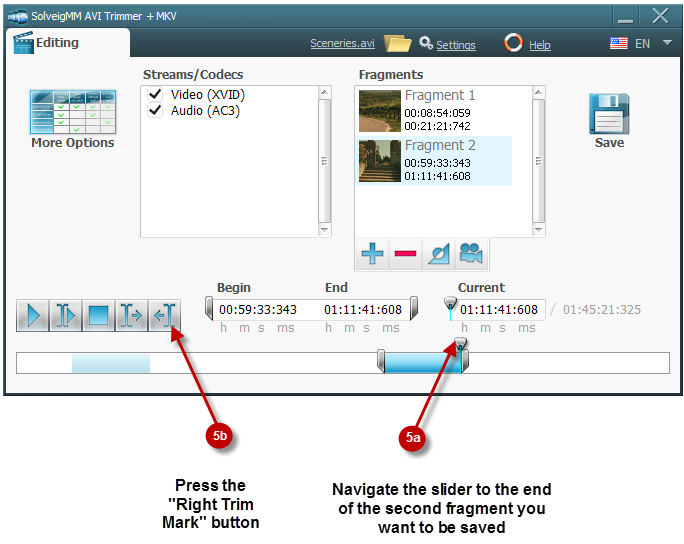
Immagine 9 – Passaggio 5
7. Dopo aver contrassegnato le posizioni di inizio/fine del secondo frammento che si desidera salvare, aggiungerlo a "Elenco tempi" facendo clic sul pulsante "Aggiungi" .
8. Per trovare e contrassegnare eventuali altri frammenti che si desidera presentare in una clip di output seguire le stesse istruzioni descritte ai punti 4, 5, 6, 7. Le immagini 6, 7, 8, 9 raffigurano queste azioni.
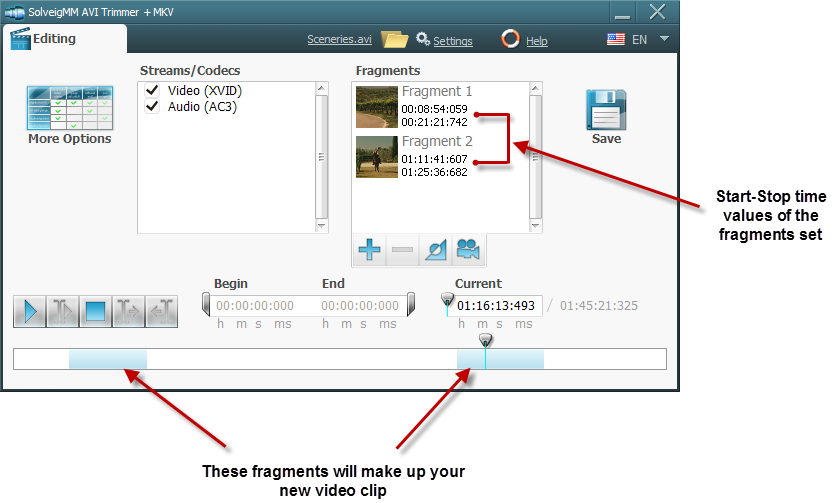
Immagine 10
9. Dopo aver trovato, contrassegnato e aggiunto alla "Lista temporale" tutti i frammenti desiderati come illustrato nell'immagine 10, basta premere il pulsante "Salva" e impostare un nome per il file di output
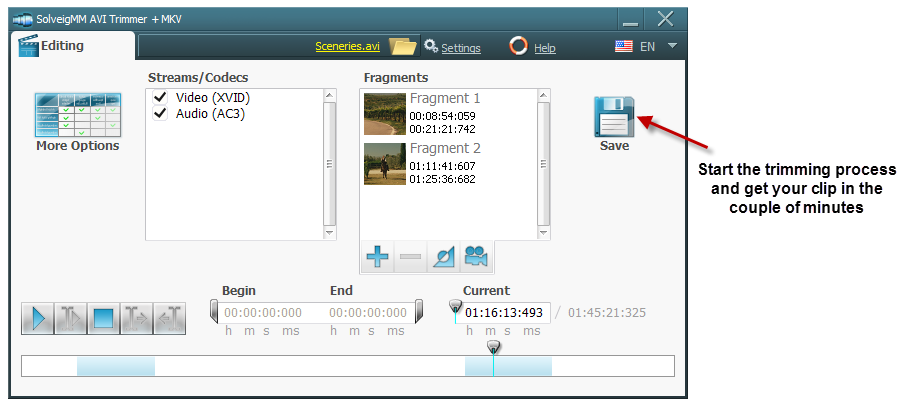
Immagine 11 — Passaggio 6
10. AVI Trimmer + MKV deve avviare il processo di ritaglio e completarlo in pochi minuti. La barra di avanzamento rappresenta l'avanzamento dell'operazione.
11. Ora per caricare la clip e condividerla con milioni di utenti Internet, avvia il tuo browser Internet (Internet Explorer™ o Fire Fox™ o quello che stai utilizzando) e vai su http://www.youtube .com/ (immagine 12)
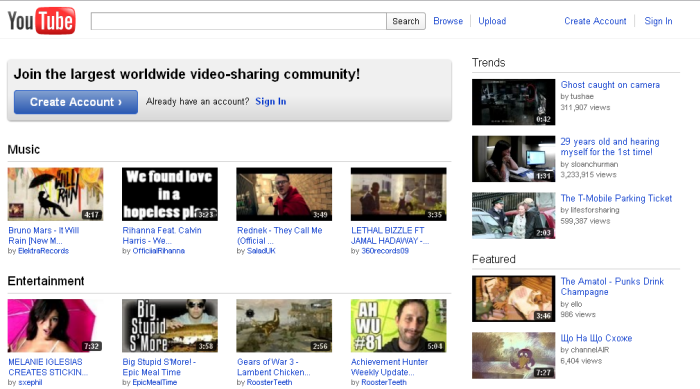
Immagine 12 — YouTube
12. Premere il collegamento web "Carica" e seguire tutte le istruzioni sulla pagina da aprire.
 Olga Krovyakova is the Technical Support Manager in Solveig Multimedia since 2010.
She is the author of many text and video guidelines of company's products: Video Splitter, HyperCam, WMP Trimmer Plugin, AVI Trimmer+ and TriMP4.
She works with programs every day and therefore knows very well how they work. Сontact Olga via support@solveigmm.com if you have any questions. She will gladly assist you!