
Interface Options
HyperCam uses four system-wide hot keys:
- to start, pause recording temporarily and resume it again after a while (the default is F2)
- to stop recording the MP4, AVI, WMV or ASF file (the default is F3)
- to snap single frames and save them to the BMP file while HyperCam is in the Pause mode (the default is F4)
- to switch between the Pan Lock mode (see the explanation below).
To redefine the hot keys, simply click inside the corresponding input box and press the key combination you want to use for the selected function. For example, if you want this key combination to be Shift+F9, please hold down the Shift key and press the F9 function key.
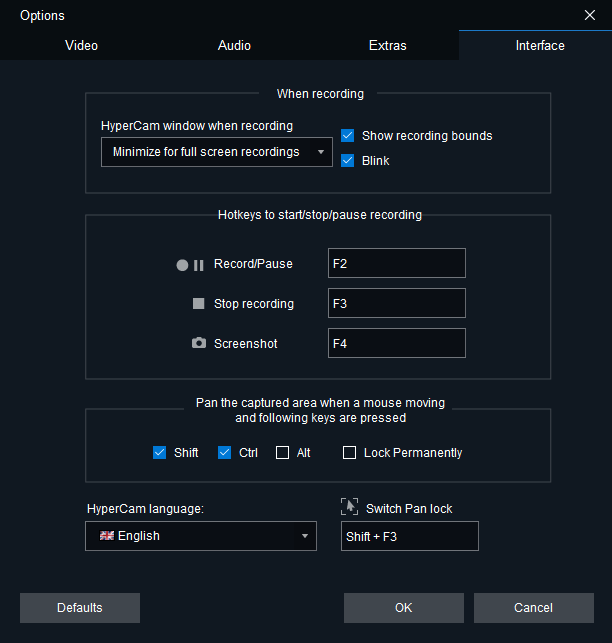
With the Screenshot hot key (F4 by default), you can make HyperCam capture and save single frames to a BMP file at the exact moments you need. Just start HyperCam, select the region and no matter which mode is on (start/resume/pause or stop), exactly one frame will be snapped and saved to a BMP file after you press this hot key.
This special HyperCam feature causes the defined screen area to move along with the movement of the mouse pointer. It can be very useful in some cases to keep the size of your MP4, AVI, WMV or ASF file down and yet to cover more screen area.
The area that is recorded to a screen movie can also be moved without using the Pan Lock hot key. You can select any combination of the modifier keys (Shift, Ctrl and Alt), which (when held) will cause the record frame to follow the mouse pointer movements. If you select the Lock permanently checkbox, the area will be moved without any modifier keys held down. This mode may be also toggled on and off using the Switch Pan Lock hot key during recording.
! Results can be a bit disorienting if you do not use proper techniques so we suggest you experiment with this often useful mode.
The When Recording buttons determine if the rectangle should be shown around the recorded area or not, and what happens to the HyperCam window when you start recording. It may be left in place, iconized to the task bar, or completely hidden.
! Please note that you should know the hot key to stop recording the screen movie if you iconize or hide the window, or you may find it difficult to stop recording it. Click the Hot Keys tab in HyperCam to find out (and change if necessary) the hot key assignments.
The Defaults button may be used to reset all the options (record area, hot keys, Audio - Video parameters, etc.) to their default values. HyperCam remembers all custom parameters that you set even if you exit and restart it later.