Recording, Playing and Editing
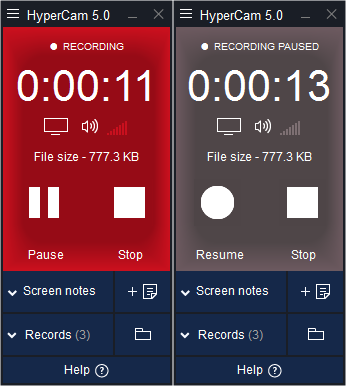
After setting all the parameters for your file, defining the screen area that you want to record, and noting all the hot key assignments, you are ready to start recording. You may start recording immediately by clicking the Record (big red) button or pressing the start hot key (F2 by default). You can also start in the paused mode and pan the capture area without beginning to record. To start in the paused mode, click the Record and then Pause buttons or press the corresponding hot key (F2 by default). Then, unpause it when ready by pressing the pause hot key (F2 if you have not changed it) again.
Once you start recording, you will see four corners limiting the rectangle on your monitor. Everything within this rectangle, including your mouse pointer movements, will be recorded. You can also speak into your microphone and record the sound. The rectangle in which the recording is taking place can be moved (see Pan Lock in Hot Keys). You can temporarily pause recording by pressing the Pause hot key (F2 by default) and then prepare the program being recorded or move the rectangle. When ready to resume recording, press the same Pause or Resume hot key again. Finally, you can stop recording by pressing the Stop hot key (F3 by default).
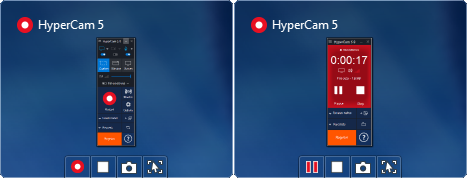
If you leave HyperCam open or minimize it, you can also use the HyperCam buttons to start/stop and pause/resume recording.
As soon as you finish the recording session, the thumbnails of the new MP4, AVI, WMV, ASF and BMP files should sppear in the Recent Record area.
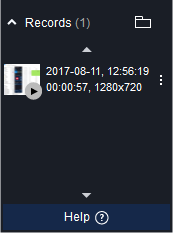
Whenever you need to play, edit, delete or browse any record, just select it, right-click or push the  button and then select the action from a menu.
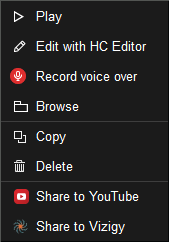
However, HyperCam does not play the file itself. Instead it makes Windows play it for you using the default player installed on your system.
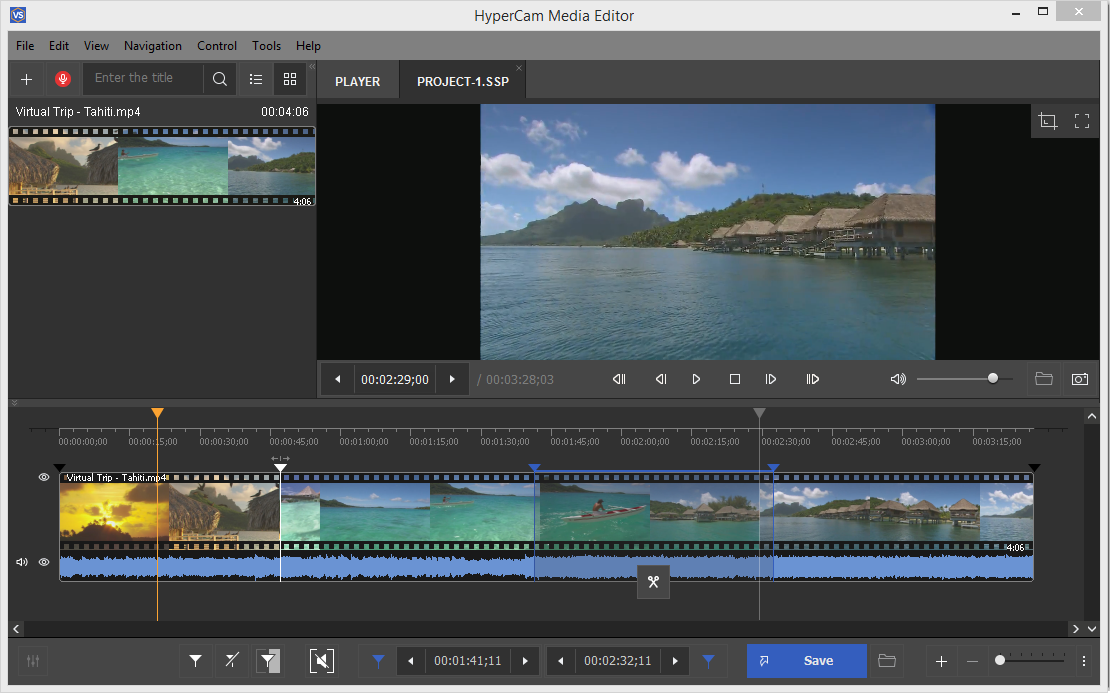
A click on the Edit menu opens the saved file in HyperCam Media Editor that will help you to edit your file. With HyperCam media editor you can trim your file, join multiple files with equal parameters into one file and also add a sound or voice comments to the video with a "Voiceover" feature.