 Eng
Eng  Rus
Rus  Deu
Deu  Ital
Ital  Esp
Esp  Port
Port  Jap
Jap  Chin
Chin How to cut out commercials from video

By Olga Krovyakova - modified February 12, 2024, created March, 18 2019
Depending on the file type SolveigMM Video Splitter can be used as a MPEG-2 Splitter, AVI Splitter, WMV Splitter, ASF Splitter.

This guide considers the simple scenario:
You want to clear the movie from commercials. This guide explains how to do that with SolveigMM Video Splitter in a few simple steps without video/audio quality degradation and in a couple of minutes.
- To open media file you want to process click Add files to the Media library button as shown on Figure 1 or choose menu item File -> Add Media Files.
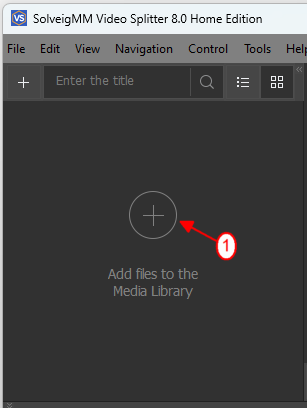
Figure 1
2. The open file dialog will appear. Select your video file and click Open button (Figure 2).
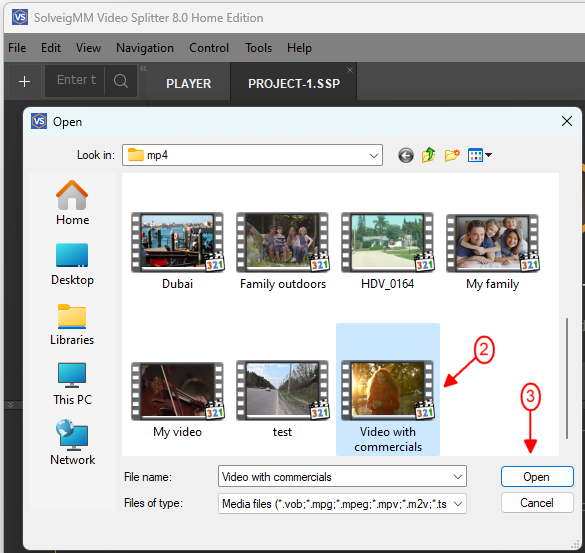
Figure 2
3. Move the file from the Media library to the timeline. File will be opened and you will see preview (Figure 3).
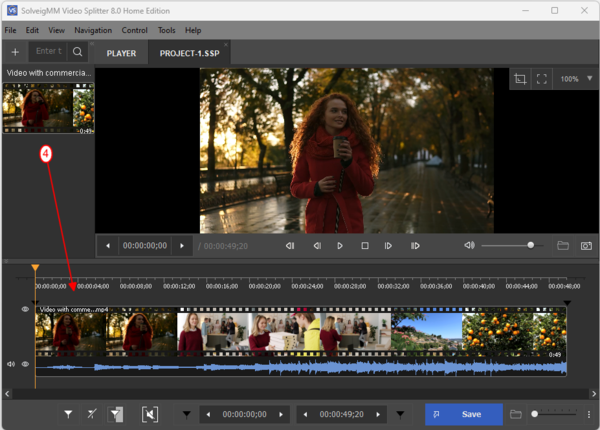
Figure 3
4. Find begining of the commercial with Video slider and click Add marker button.
Marker should arise at position you set (Figure 4).
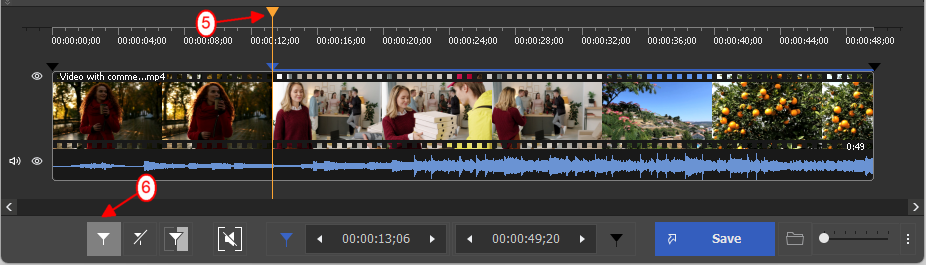
Figure 4
5. Find end of the commercial with Video slider and click Add marker button again. Second marker will arise. You can also use timeline zooming option to find the needed frame. (Figure 5)
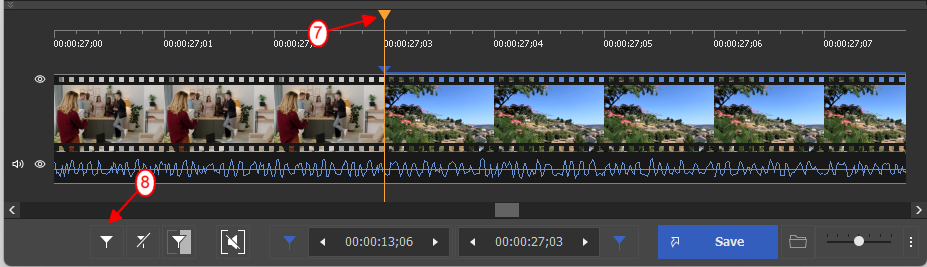
Figure 5
6. For next commercial repeat the same steps.
Find beginning of the commercial with Video slider and click Add marker button.
In this case, the end of the commercials coincides with the end of the file, so we do not put an end of fragment marker.
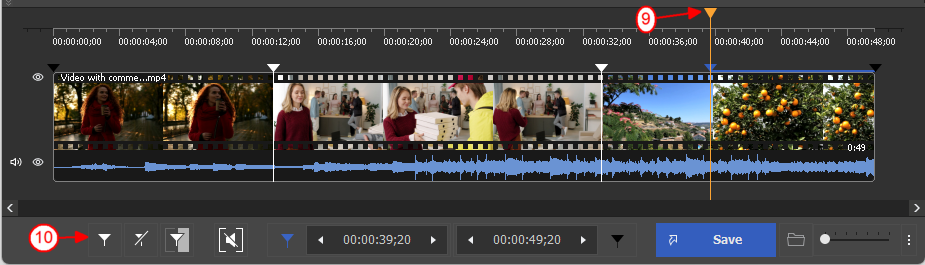
Figure 6
7. Move the cursor between markers and click the scissors button as shown on Figure 7.
Repeat this action for all fragments with commercials. Click the Save button to start the editing.
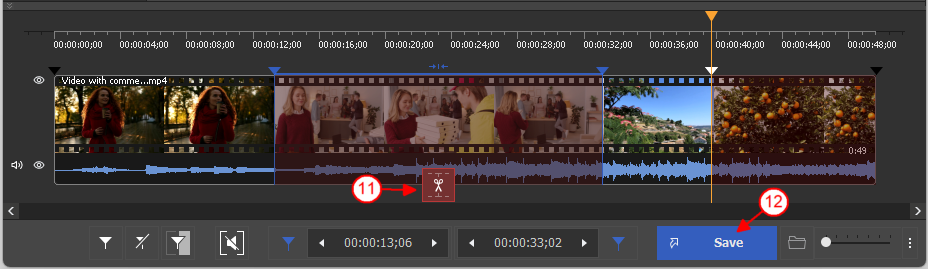
Figure 7
8. You will be asked for output file name and folder to save your file.
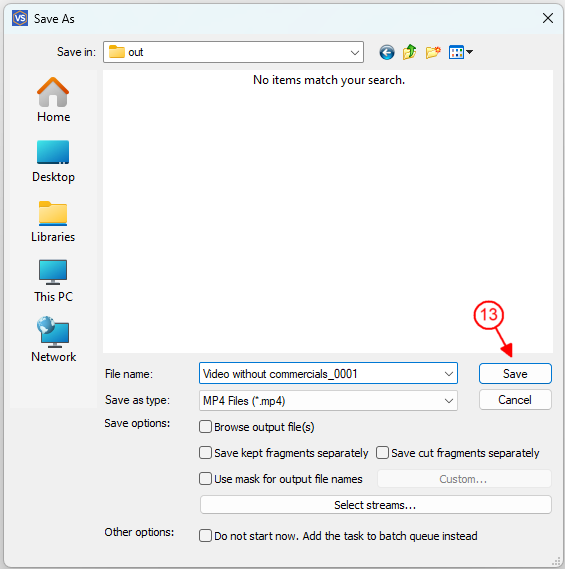
Figure 8
9. During splitting sequence you will see the current progress (Figure 9).
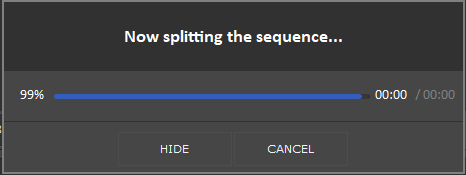
Figure 9
10. When the editing will be completed, you'll see the offer to browse your output file.
Click the "Browse output" button to open the folder with the edited file.
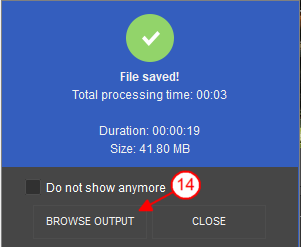
Figure 10
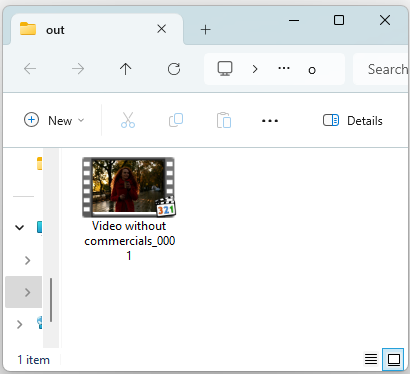
Figure 11
That's all.
- https://www.solveigmm.com/en/howto/how-to-edit-your-video-and-audio-within-windows-media-player/
- https://www.solveigmm.com/en/howto/how-to-remove-audio-track-from-media-file-with-video-splitter/
 Olga Krovyakova is the Technical Support Manager in Solveig Multimedia since 2010.
She is the author of many text and video guidelines of company's products: Video Splitter, HyperCam, WMP Trimmer Plugin, AVI Trimmer+ and TriMP4.
She works with programs every day and therefore knows very well how they work. Сontact Olga via support@solveigmm.com if you have any questions. She will gladly assist you!