 Eng
Eng  Rus
Rus  Deu
Deu  Ital
Ital  Esp
Esp  Port
Port  Jap
Jap  Chin
Chin How to edit your movie to put it on YouTube

By Olga Krovyakova - March, 21 2019
This guide considers the simple scenario:
You want to make the movie clip by cutting out unnecessary parts from AVI file. Sure you can do that by means of many of free/shareware video tools. This guide explains how to do that with our free video editor - SolveigMM AVI Trimmer + MKV in a few simple steps without video/audio quality degradation and in a couple of minutes.

Here for example we want to produce the clip to contain two funny scenes from initial AVI amateur movie.
Note: AVI Trimmer + MKV allows you to keep/cut any number of fragments.
1. Download and install this tool.
2. Start SolveigMM AVI Trimmer + MKV
3. Open a source AVI or MKV file to have the scenes you like (picture 1).
Or press the Folder button if you open the file from AVI Trimmer + MKV main window.
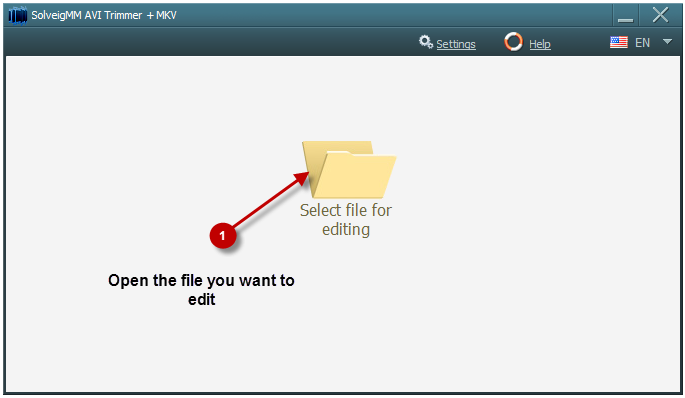
Picture 1 — Step 1
4. Find beginning of the first scene you want to be kept (picture 2). You can fulfill that by using video slider bar play and pause buttons.
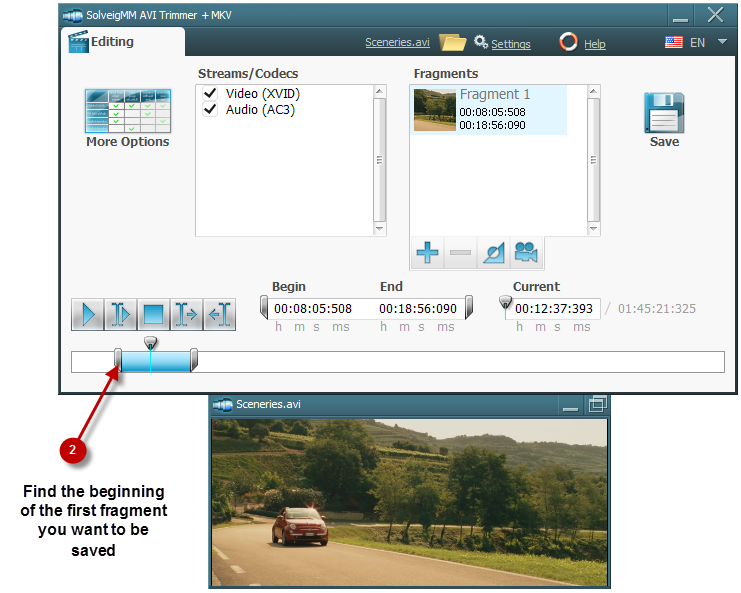
Picture 2 — Step 2
Or navigate the slider to the start position and press the "Left Trim Mark" button as start of a piece you want to be saved (picture 3)
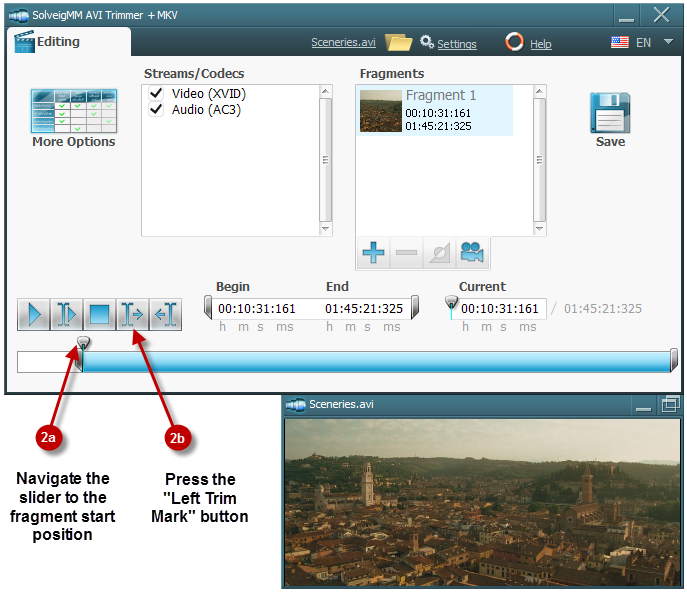
Picture 3 — Step 2
5. Find the fragment end (picture 4). Searching end position you can fulfill by using video slider bar , play and pause buttons.
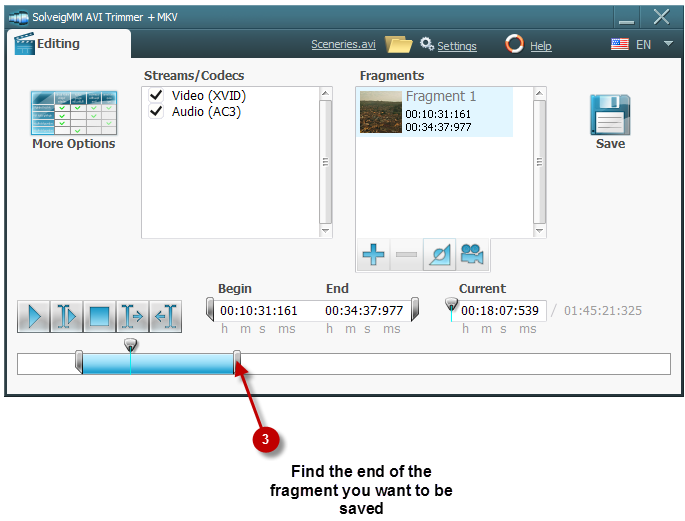
Picture 4 — Step 3
Or navigate the slider to the end position and press the "Right Trim Mark" button.
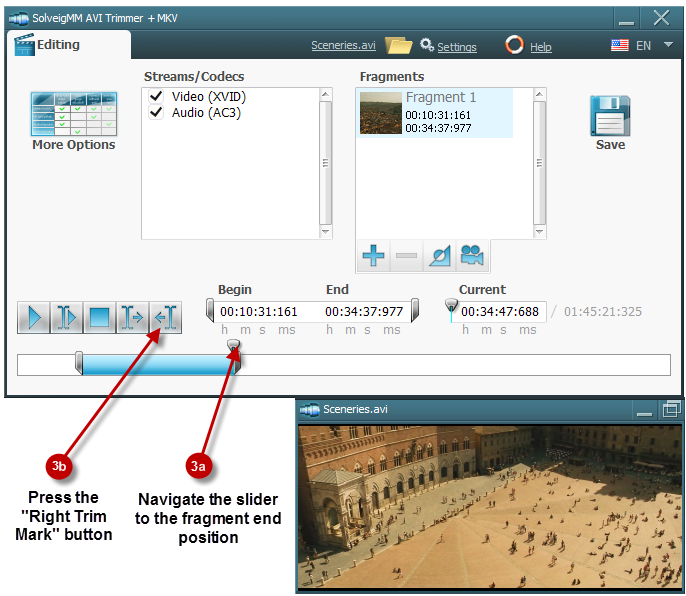
Picture 5 — Step 3
6. To find and mark next fragments you want to be presented in an output clip follow the same instructions as described in points 4, 5. Pictures 6, 7, 8, 9 depict these actions.
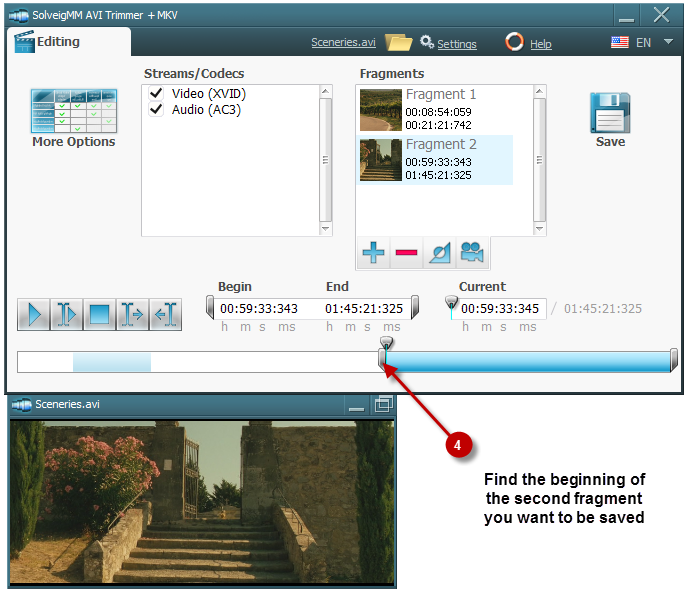
Picture 6 — Step 4
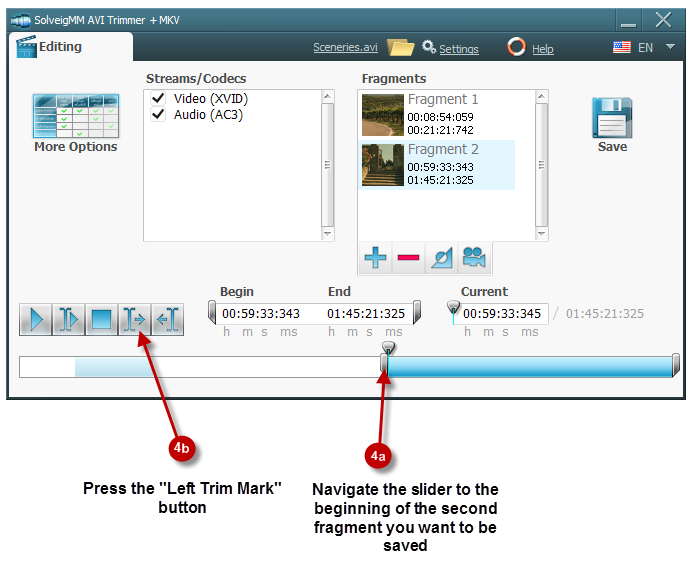
Picture 7 — Step 4
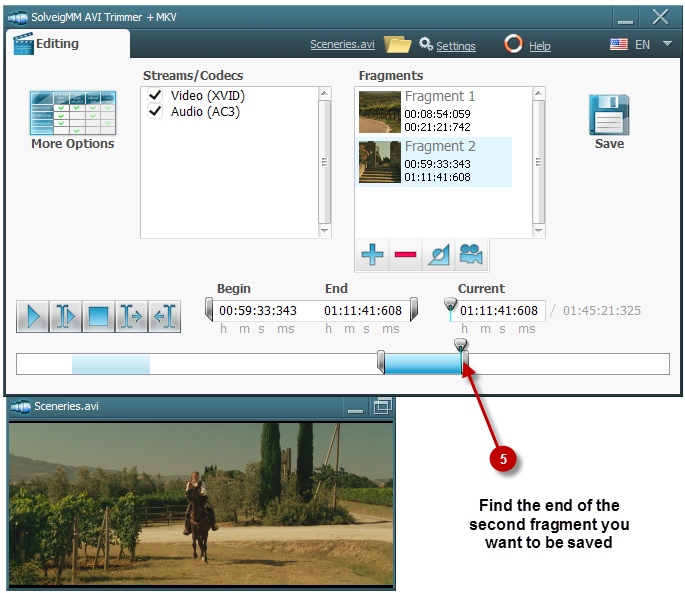
Picture 8 — Step 5
Or navigate the slider to the end of the second fragment and press "Right Trim Mark" button.
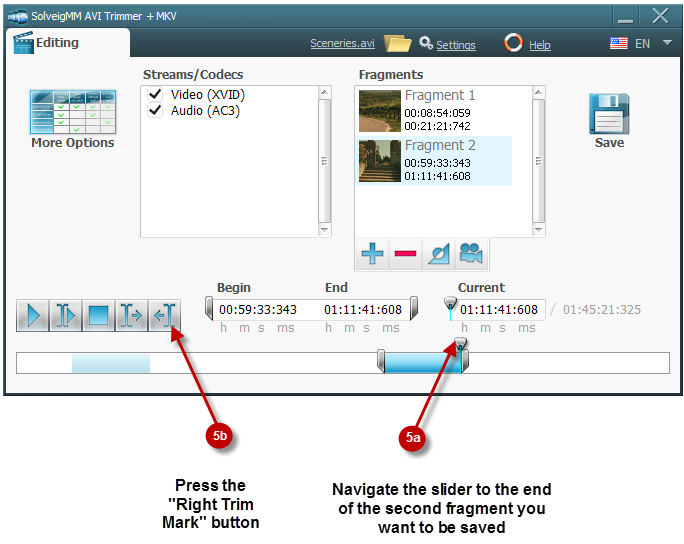
Picture 9 — Step 5
7. After you marked start/stop positions of the second fragment you want to be saved, add it to "Time List" by clicking "Add" button.
8. To find and mark any more fragments you want to be presented in an output clip follow the same instructions as described in points 4, 5, 6, 7. Pictures 6, 7, 8, 9 depict these actions.
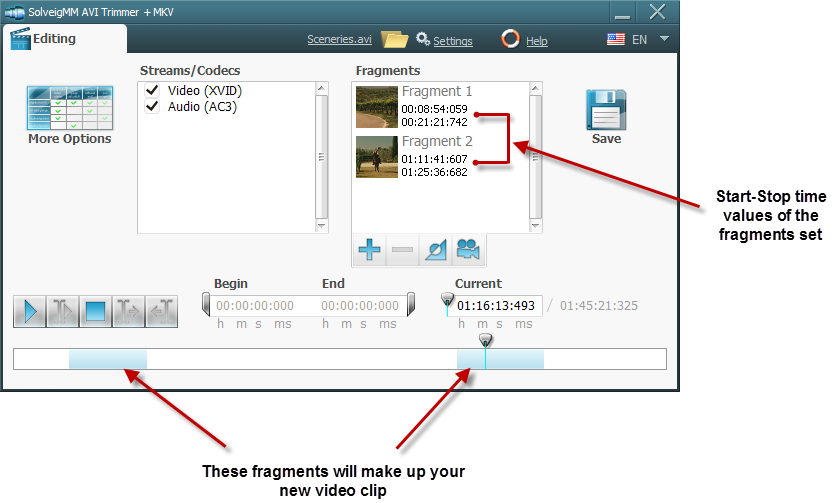
Picture 10
9. After you have found, marked and added to "Time List" all the fragments you wanted as depicted on picture 10 just press "Save" button set an output file name
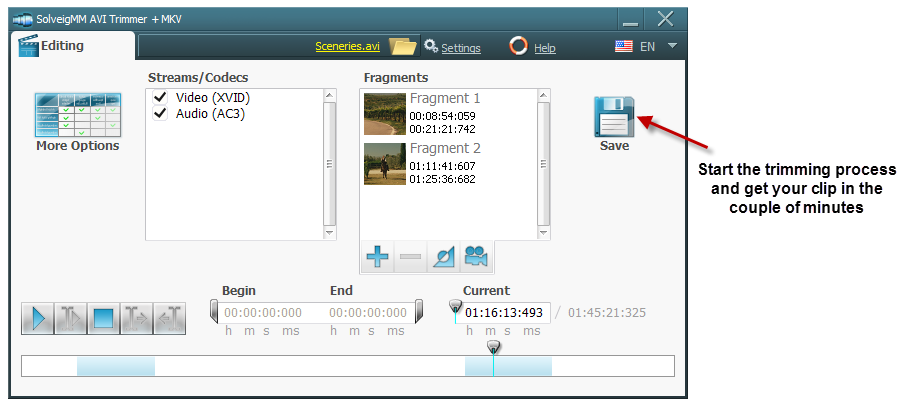
Picture 11 — Step 6
10. AVI Trimmer + MKV must start trimming process and finish it in a few minutes. The progress bar represents the operation progress.
11. Now to upload the clip and share it with millions Internet users, start your Internet browser (Internet Explorer™ or Fire Fox™ or what you are using) and go to http://www.youtube.com/ (picture 12)
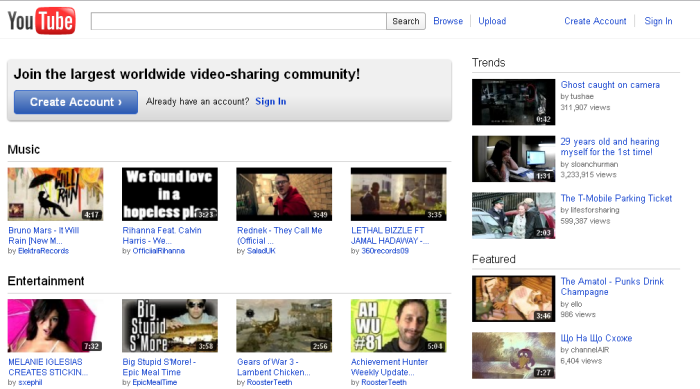
Picture 12 — YouTube
12. Push "Upload" web link and follow all the instructions on the page to be opened.
- https://www.solveigmm.com/en/howto/how-to-split-mpeg2-file-with-video-splitter/
- https://www.solveigmm.com/en/howto/how-to-split-asf-file-with-video-splitter/
 Olga Krovyakova is the Technical Support Manager in Solveig Multimedia since 2010.
She is the author of many text and video guidelines of company's products: Video Splitter, HyperCam, WMP Trimmer Plugin, AVI Trimmer+ and TriMP4.
She works with programs every day and therefore knows very well how they work. Сontact Olga via support@solveigmm.com if you have any questions. She will gladly assist you!