 Jap
Jap  Eng
Eng  Rus
Rus  Deu
Deu  Ital
Ital  Esp
Esp  Port
Port  Chin
Chin HyperCam 3 の登録方法

By Olga Krovyakova - modified December 25, 2026, created April 1, 2019

You purchased HyperCam, have got your license key by email and now want to registered you installed version of HyperCam?
Here is the way how to activate the software.
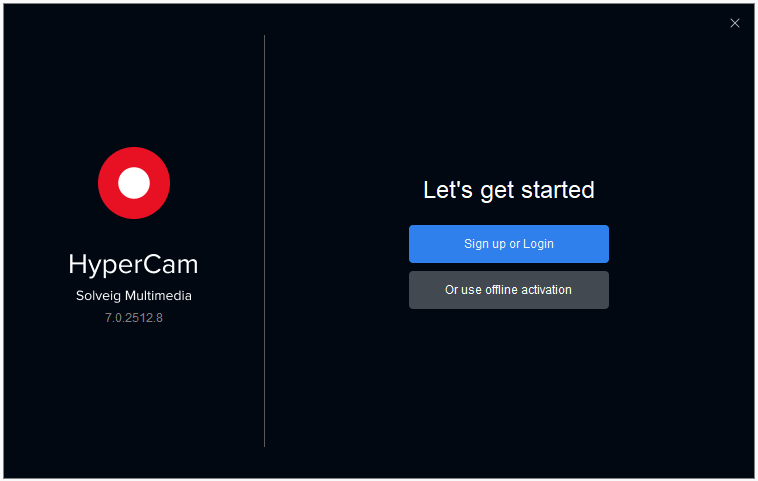
1. Launch HyperCam clicking by icon or your desktop or via the start menu. The main window should arise as depicted below:
2. Click on the "Sign up or Login" button to start the authorization.
3. The browser with the webform will be opened.
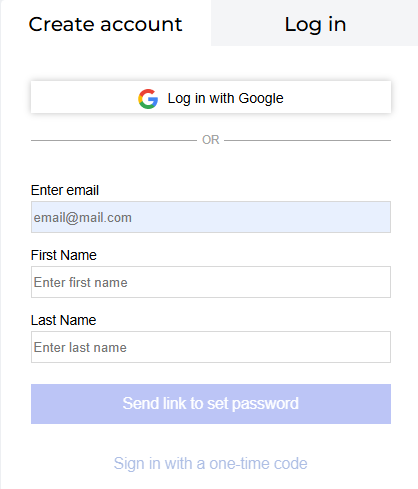
If you try to register HyperCam at the first time, you please click the "Create account" tab and fill in the required fields.
Enter your email address, First and Last names and click the "Send link to set password" button.
You can also select "Sign in with a one-time code".
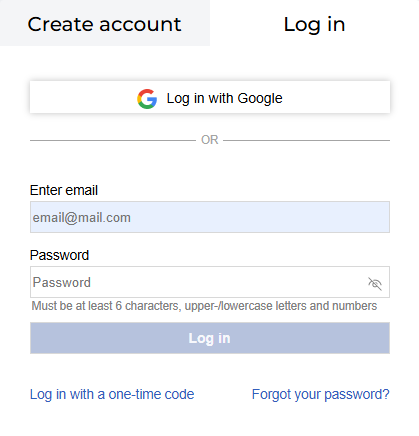
If you have already created account earlier, login to the existing account or use "Log in with Google account".
To use your Google account is the easiest way to pass the authorization.
You can also login with the one-time code that will be delivered to your email.
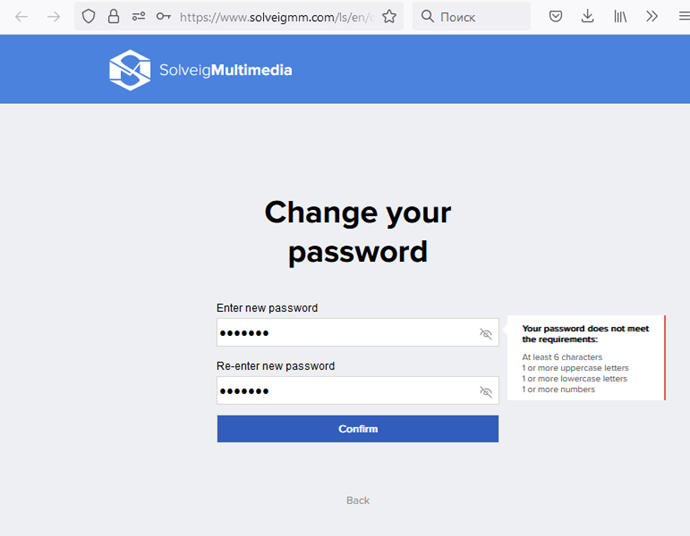
4. Please go to your email inbox, you'll get the email from us with the link to set your password, click it please.
5. Then enter the password to special fields and click the "Confirm" button. After that the authorization will be completed and you can return to HyperCam application.
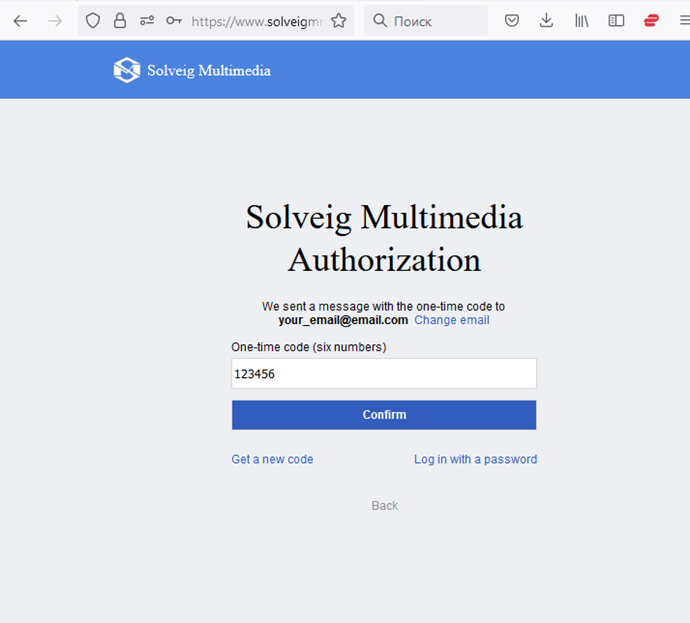
If you select "Log in with a one-time code", you'll get the temporary one-time code to the specified email address.
Enter this code and click the "Confirm" button.
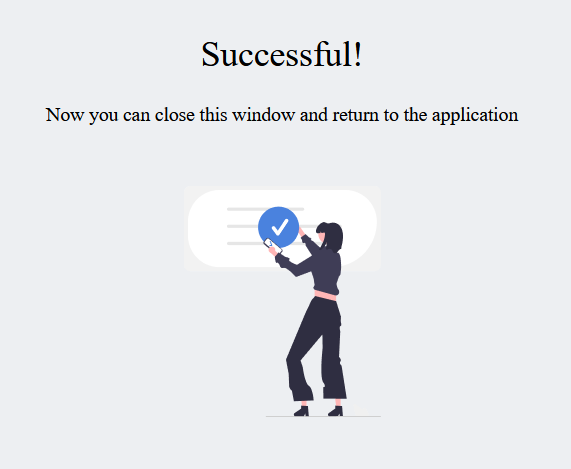
You'll see the following message about successful aithorization afterwards. Close the browser and return to HyperCam.
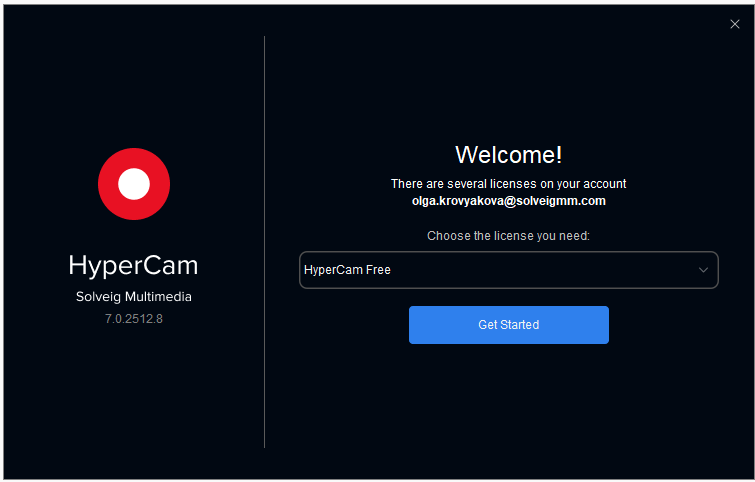
6. Switch to HyperCam. Select your Edition in the dropdown menu of the "Welcome" window and click the "Get Started" button.
If you register HyperCam for the first time you will see "HyperCam Free" in the drop down list.
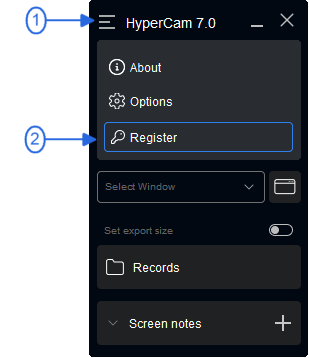
To register HyperCam with your purchased license key go to Hamburger Menu (1) / Register (2) menu item.
Enter your license key into the activation window and press ''Activate'' button.
It is recommended to use copy/paste to enter the license key.
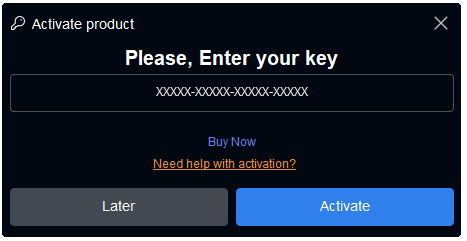
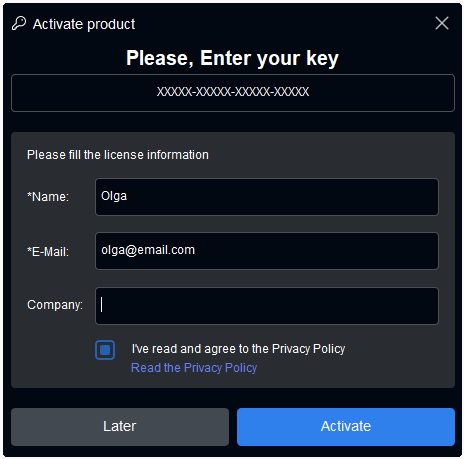
Then fill in the required information if necessary and click the "Activate" button again.
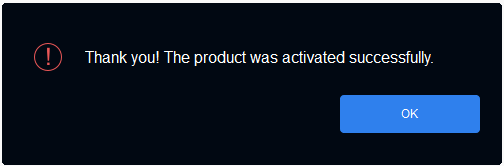
After that you will see the message about successfull registration.
Thanks for reading and good luck with your screen capture projects!
- https://www.solveigmm.com/en/howto/how-to-use-game-recorder-hypercam/
- https://www.solveigmm.com/en/howto/how-to-record-streaming-video-with-hypercam/
 Olga Krovyakova は、2010 年から Solveig Multimedia のテクニカル サポート マネージャーを務めています。
彼女は、ビデオ スプリッター、HyperCam、WMP トリマー プラグイン、AVI Trimmer+、TriMP4 などの会社製品に関する多くのテキストおよびビデオ ガイドラインの著者です。
彼女は毎日プログラムを使って作業しているため、プログラムがどのように機能するかをよく知っています。 ご質問がある場合は、 support@solveigmm.com経由で Olga までお問い合わせください。彼女は喜んでお手伝いします!